Actual Budget
Sync your bank transactions and balances from Synci straight into Actual Budget, using Actual's built-in SimpleFIN bank sync. No scripts, no browser extensions, and it works with any hosted Actual server, including PikaPods.
Written By Matias
Last updated 6 days ago
How it works
Synci gives Actual Budget a secure, read-only connection to the accounts you choose. Whenever you press Bank Sync, Actual Budget asks Synci for your latest transactions and balances and imports anything new. Synci never pushes to Actual Budget and can't see or change your budget: Actual Budget does the fetching, on your command, and you can revoke access from Synci at any time.
Before you start
A hosted Actual Budget server. Actual's bank sync runs on the server (self-hosted via Docker, PikaPods, Fly.io, or similar), so a local-only budget can't use it.
A Synci account with at least one connected account (bank, investment/brokerage, or crypto). They all sync into Actual Budget as budget accounts.
Set it up
1. Create a connection in Synci
In Synci, open
Actual Budgetunder Integrations in the sidebar. It's pinned there by default, and you can always find it on theAll integrationspage. ClickNew connection.Appis already set to Actual Budget. Optionally give the connection a name, then clickContinue.Under Select accounts, choose which accounts Actual Budget can pull. Leave
All accountson to share everything you have now, plus anything you connect later, or turn it off and pick specific accounts. Then clickCreate connection.Synci shows a one-time setup token. Copy it, you'll paste it into Actual Budget next.
The token is valid for 7 days and can be used once. You can close the dialog at any point: the token stays on the connection's page until Actual Budget uses it. If it expires before you get to it, click Regenerate token on the connection's page (regenerating replaces the old token). Once Actual Budget has used the token, it can't be regenerated.
2. Link your accounts in Actual Budget
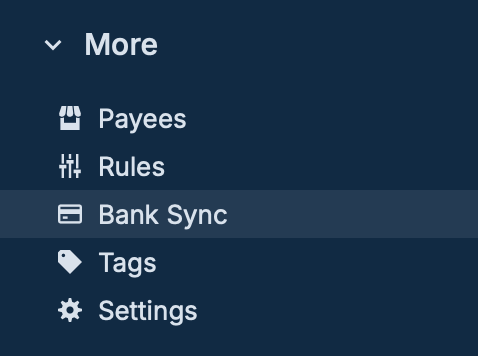
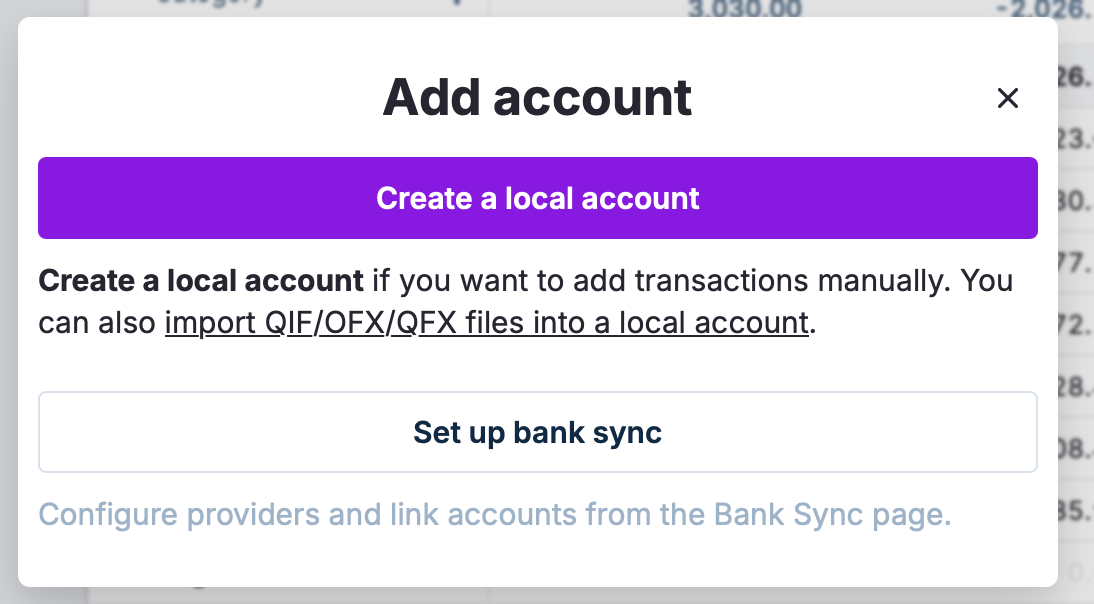
In Actual, open your budget and click Add account at the bottom of the sidebar, then Link bank account > SimpleFIN. If bank sync isn't set up in Actual yet, Actual offers Set up bank sync instead. You can also get there from More > Bank Sync in the sidebar.
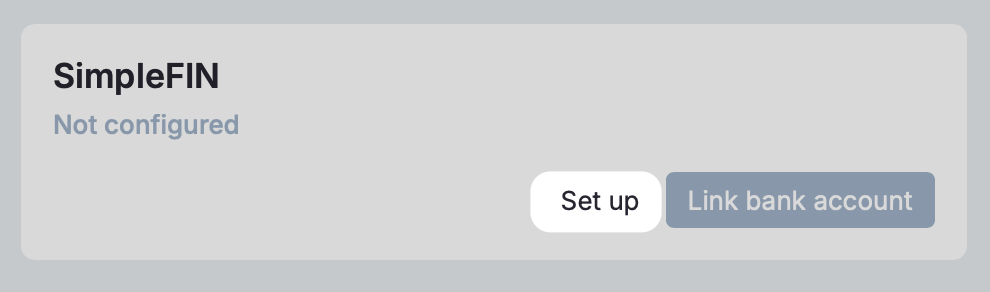
Under SimpleFIN, click Set up.
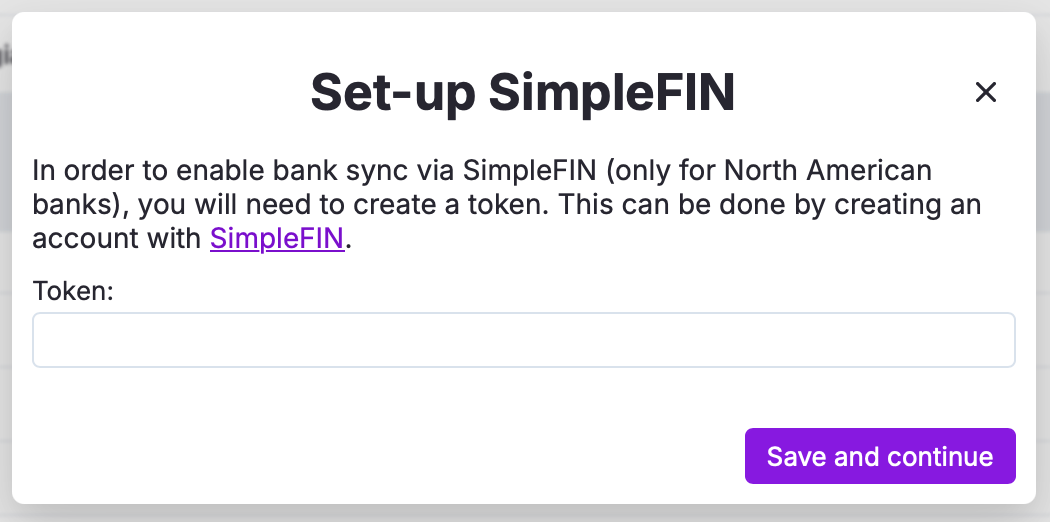
Paste the setup token from Synci and continue.
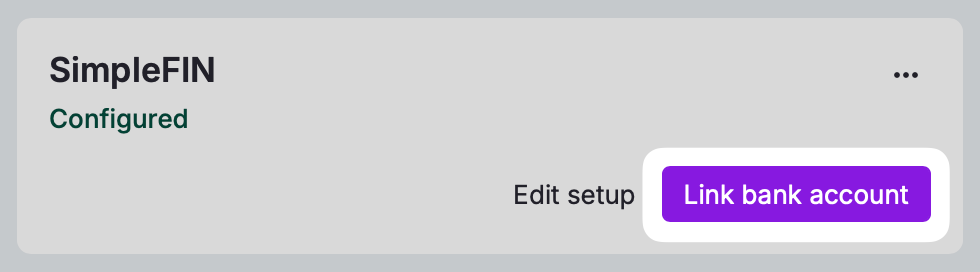
Click Link bank account. Actual Budget lists the accounts you shared in Synci.
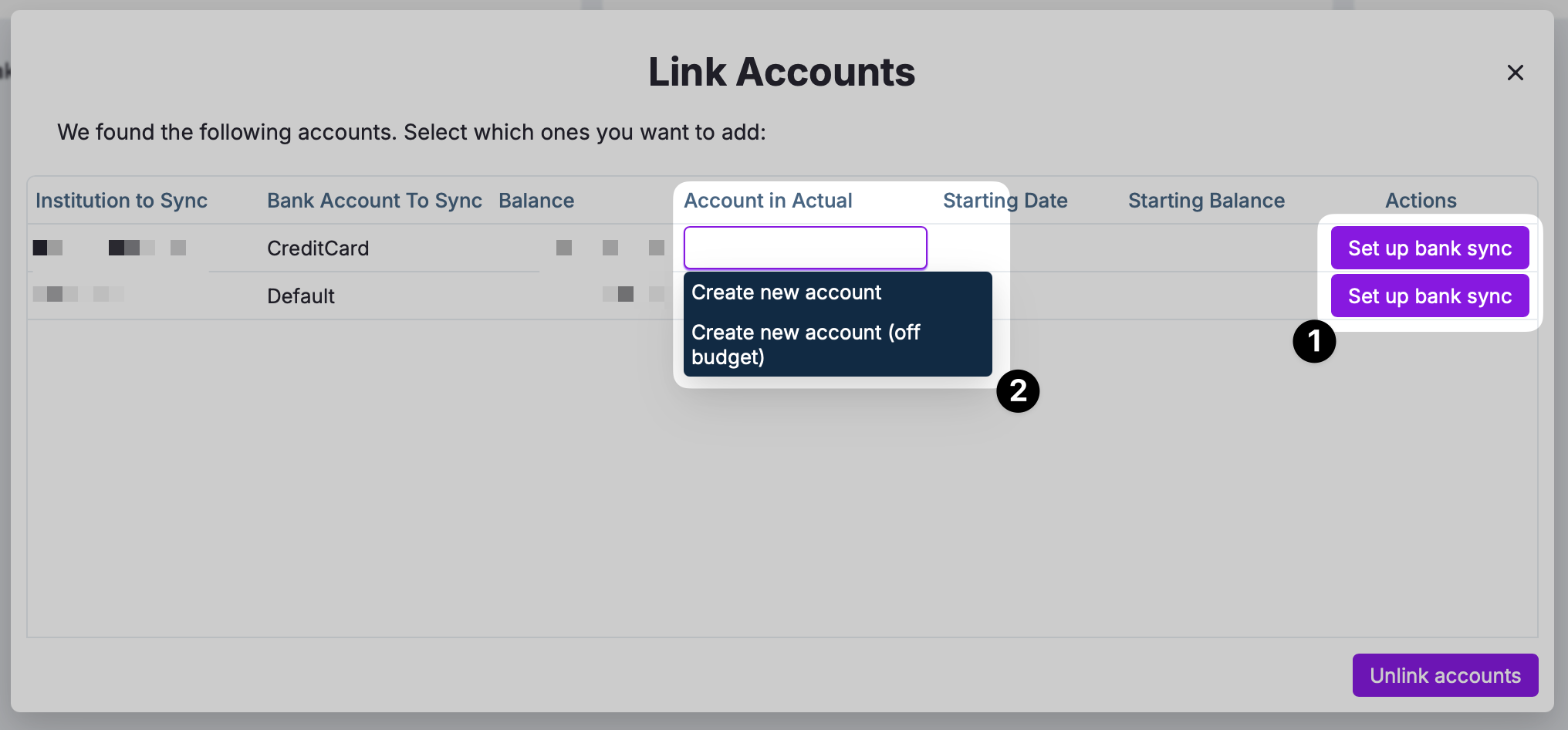
Click Set up bank sync next to each account you want to connect, then either select the existing Actual account to link it to, or create a new one. Check that the starting date and starting balance look right, then click Link accounts in the bottom right.
You're done with this step when each account appears in your budget's sidebar with a bank sync icon, and the token screen is gone. You won't need the token again.
3. Sync
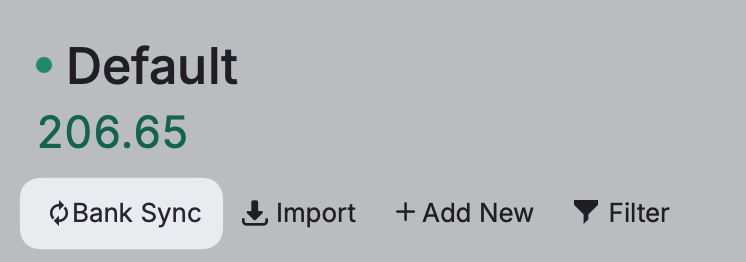
Linking the accounts gives Actual Budget its first import. From then on, Actual only pulls new data from Synci when you sync in Actual: open an account and click Bank Sync at the top of the register, or sync all accounts at once from More > Bank Sync. If no transactions appear right after linking, run Bank Sync once.
Actual imports new transactions and updated balances and matches them against what's already in your budget, so re-syncing never creates duplicates.
You'll know the sync worked when new transactions appear at the top of the register and the account balance updates. If nothing appears, there may simply be no new transactions since the last sync. In Synci, the connection's page shows when Actual Budget last pulled data.
Actual Budget doesn't sync on its own schedule. Run Bank Sync when you want it, or use a community scheduler to automate it.
Good to know
Works on managed hosts like PikaPods. Because Actual Budget pulls from Synci, there's nothing to install and no cron job to babysit on your own machine, so it works even on hosted setups where script-based tools can't run.
How much history you get. When Actual Budget asks without a start date, Synci sends the last 90 days of transactions. When it asks for an earlier start date, Synci sends up to 730 days. Either way, you only get what Synci still holds, which depends on your data retention setting and the account's sync start date. For older history, do a one-time CSV import in Actual Budget (for example, a statement export from your bank); bank sync takes over from there.
Customizing how transactions look. To change payees or clean up descriptions, use Synci rules. A Change my data in Synci rule saves its changes to your transactions, so they flow into Actual Budget automatically. An Only on the way out rule attached to the account (an output rule) reshapes what Actual Budget receives, or leaves transactions out, without changing your data in Synci. It applies to everything the account sends, so destinations, webhooks and other apps get the same changes. Actual's own rules work on top. See Creating rules to get started.
Changing which accounts are shared. Change the selection any time on the connection's
Settingstab, underAccounts; changes apply on Actual's next sync. If you stop sharing an account that's still linked in Actual Budget, that account will show a connection error. Unlink it there, or share it again in Synci.Pausing access. Click
Disableon the connection's page to stop Actual Budget from pulling data without revoking it. Its syncs fail until you clickEnableagain. This is separate from revoking, which is permanent (see below).Multiple connections. One Actual Budget connection per server is the simplest setup, but you can create as many as you like, each with its own token and account selection.
Security and revoking access
The connection is read-only and limited to the accounts you share with it: it can only fetch account data and nothing else in your Synci account. If you left All accounts on, that scope includes accounts you connect in the future.
You can revoke access at any time: open the connection in Synci and click Revoke. Actual's next sync will then report that the connection is no longer valid. Revoking can't be undone, so to reconnect later, create a new Actual Budget connection and link your accounts again. If you only want to pause access for a while, use Disable instead.
Troubleshooting
Still stuck? Contact support and we'll help you get connected.
Was this helpful?
Still need help? Ask the team