Changelog

Follow new updates and improvements to Synci.

Connect your bank to Actual Budget and SimpleFIN powered apps
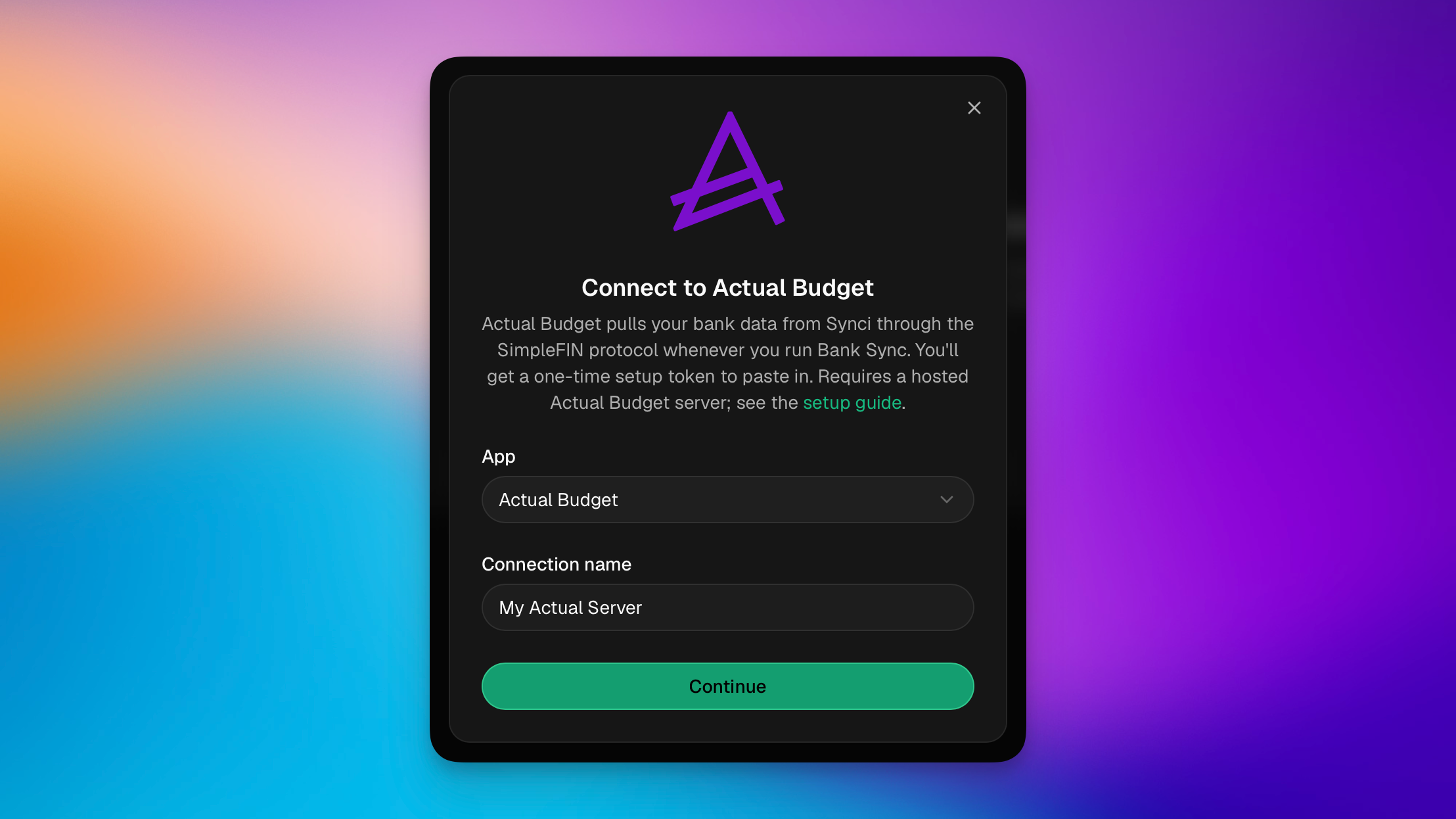
Synci is now a SimpleFIN data source. You can pull your bank, investment, and crypto accounts into Actual Budget or any other SimpleFIN-compatible app.

Until now, Synci pushed your data out to destinations like YNAB, Lunch Money, and Google Sheets. SimpleFIN flips that around: instead of Synci pushing, your budgeting app pulls from Synci whenever it runs its bank sync. That one change opens the door to a whole ecosystem of apps that already speak the SimpleFIN protocol, without us having to build a separate integration for each one.

  • Actual Budget gets a dedicated destination that we've tested end to end. See the Actual Budget setup guide.

  • Any other SimpleFIN app works through the generic SimpleFIN destination. Well-known examples include Buckets, Sparky Budget, ZapYeti, and EnvelopeBudget. If an app has a "connect a bank with SimpleFIN" option, it can read from Synci. See Apps powered by SimpleFIN.

Because Synci connects European banks (via GoCardless) and New Zealand banks (via Akahu), accounts from those regions now flow into these apps too, and investment/brokerage and crypto-exchange accounts come along, not just checking and savings.

How it works

  1. In Synci, go to Destinations then Actual Budget or SimpleFIN. Create a new connection.

  2. Choose which accounts to share: everything you have (now and in the future) or a specific selection.

  3. Copy the one-time setup token and paste it into your app's SimpleFIN screen.

  4. Run your app's bank sync. New transactions and updated balances import automatically, with no duplicates on re-sync.

The connection is read-only and scoped to exactly the accounts you pick. Synci never sees or changes your budget, your app does the fetching on your command, and you can revoke access at any time from the destination's page.

Good to know

  • One app, one destination. Each app connects with its own destination and its own single-use setup token. Connect as many apps as you like.

  • Shape your data with enrichment & rules. To clean up payees or descriptions, you can use Synci's built-in transaction enrichment and/or bank account rules. Their changes flow into every connected app automatically.
Talk to your money. Build on Synci.

Some exciting new features went live this week! You can now connect an AI assistant to Synci and ask about your money in plain language, developers can build OAuth apps that other Synci users authorize, and if you bank in New Zealand, you can now connect your accounts through Akahu.


Talk to your money: connect an AI assistant

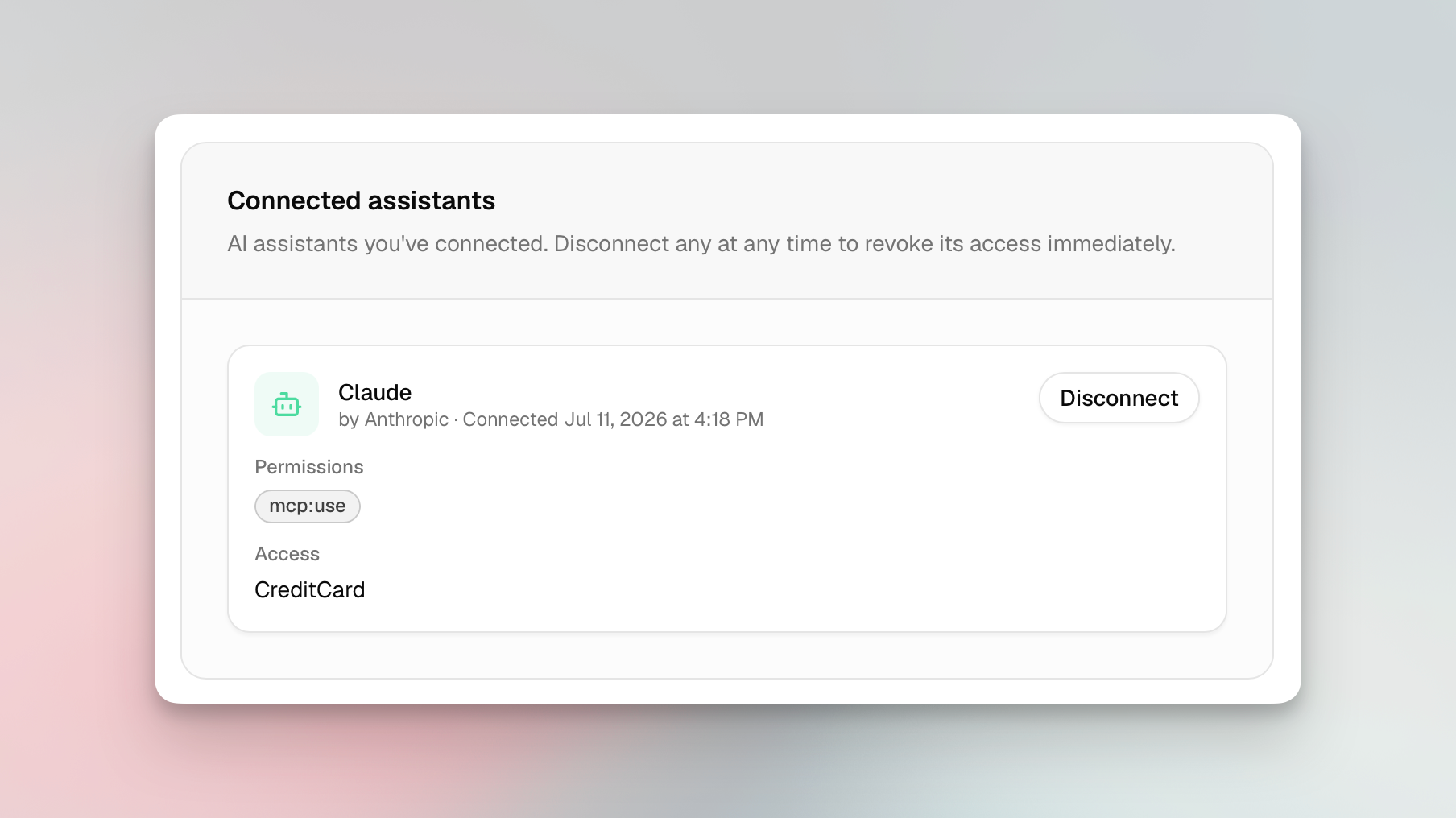
Synci now runs a read-only MCP server (Model Context Protocol, the open standard AI clients use to talk to tools). Point an MCP-compatible assistant like Claude, ChatGPT, or Perplexity at Synci, sign in once, pick which accounts it can read, and start asking:

  • "What's my balance across all my accounts?"

  • "What did I spend on groceries last month?"

  • "What are my crypto holdings worth now, and what's my profit and loss?"

It reads your real numbers, so it can summarize and chart them too. Try "chart my spending by category for the last three months" or "give me a monthly rundown of income vs expenses." Everything's read-only and scoped to the accounts you choose, nothing gets pushed anywhere, and you can disconnect any time.

Five tools are live today (accounts, balances, transactions, holdings, and connections), and clients pick up new ones automatically. Find it under AI Access in your dashboard, along with setup steps for popular assistants.

OAuth apps: Connect with Synci

Building on the Synci API has meant using a personal access token, which only reaches your own account. Now you can register an OAuth app and let any Synci user grant it access to their data, on a Synci consent screen, scoped to the accounts they pick, and revocable anytime. Your app never touches their password or token.

It all lives in the new Developers > Apps area: register an app with redirect URIs, scopes, and branding; get confidential client credentials (secret shown once, rotatable); and run it through a review flow with a Testing state and invited testers. Once approved, you can list it in Synci’s directory for users to discover.

Personal access tokens and webhooks are still there for direct, server-to-server access to your own data. Financial data stays read-only, with no write scope for accounts or transactions.

Privacy and permissions

  • Explicit consent and revocation. You authorize every app or assistant on a Synci consent screen, choose which accounts it sees, and can revoke it instantly.

  • Least privilege. Apps and assistants only get the scopes they asked for and the accounts you picked.

  • Sensitive identifiers hidden by default. AI assistants can never see your IBANs, account or card numbers, phone numbers, or account-holder names. They are also disabled for third-party apps, unless they request the "sensitive identifiers" permission, which is flagged clearly before you approve.

  • Email notifications when an app connects, disconnects, or is removed.

New Zealand banks, via Akahu

If you're in New Zealand, you can now link your bank accounts through Akahu, New Zealand's open banking platform. Browse what's supported at synci.io/banks (filter by New Zealand).

A few things NZ users will notice:

  • No consent expiry. NZ connections use enduring consent, so there's no expiry clock, no renewal emails, and nothing to reconfirm. Connect once and it stays connected until you say otherwise.

  • Near-real-time transactions. Akahu pushes new activity to Synci as it happens, with a nightly reconciliation sync as a backstop, so your data is often fresher than a polling schedule allows.

  • One place to manage your banks. NZ connections get a Manage page that opens Akahu's portal, where you can add or remove banks, or revoke access entirely, all under the same consent.

Everything else works like any other bank: read-only access, health monitoring, rules, and transfer links to YNAB, Lunch Money, and Google Sheets, plus API and webhook access. Each NZ connection counts as one connection on your plan, and it's available to everyone, with no special plan or add-on.

Availability

AI assistant access is on all paid plans, OAuth apps are live under Developers > Apps, and New Zealand connections are available to everyone.

Try it

Connect an assistant under AI Access, register an app under Developers > Apps, or add a New Zealand bank from your connections. As always, we'd love your feedback, so drop a note on the feedback board or reach out in the app.

Sync your transactions and balances to Google Sheets

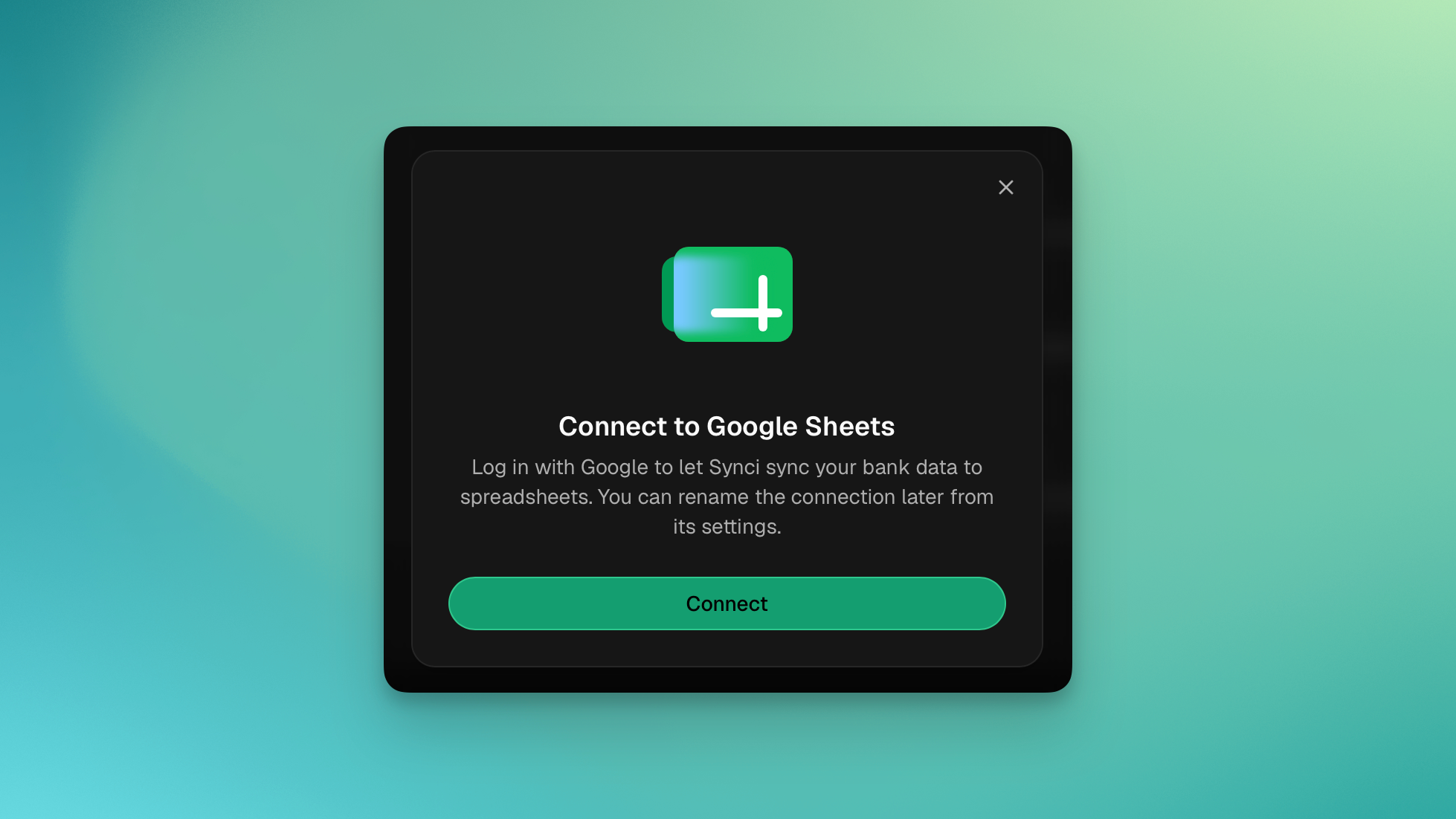
You can now sync your transactions straight into Google Sheets. Connect your Google account and Synci will keep a spreadsheet up to date for the accounts you pick, the same way it does for other destinations.

Setup is quick. Connect Google from the Destinations page, then either let Synci create a fresh spreadsheet for you or pick one you already have. Link a bank, brokerage, or crypto account to it and transactions start showing up. Your transfer start date, rules, and sync settings all carry over, so it behaves like the destinations you already know.

Pick the columns you want

As always, we want users to stay in control of their data, so you get full control over which fields end up in the sheet. The defaults cover the basics (date, payee, description, amount, currency), but you can add almost anything Synci knows about a transaction: creditor and debtor details, IBANs, remittance info, merchant category codes, FX rates, the enriched data, and more. It's the same set of fields you use when building Rules, and you can change it per sheet whenever you want. Synci will automatically refactor the spreadsheet and backfill/remove column values as needed.

Balances, not just transactions

Each spreadsheet comes with two extra tabs. One keeps a current balance for every account (available and cleared), and the other records balances over time, which is handy if you want to chart how things are tracking.

A few things worth knowing

  • Synci can only see the spreadsheets it creates or the ones you pick, never the rest of your Drive.

  • Amounts go in as real numbers with dates in their own column, so formulas and pivot tables work without any cleanup.

  • New rows are added at the bottom in date order. Sort the sheet if you'd rather see the newest first.

Head to Destinations > Google Sheets to set it up.

Earlier updates