Transactions
Useful information regarding the transactions we fetch from your accounts.
Written By Matias
Last updated 3 months ago
Formerly "bank transactions": Synci now fetches activity from banks, brokerages, and crypto exchanges alike, so these are simply called transactions. For investment accounts, transactions represent account activity: trades, dividends, contributions, withdrawals, fees, and so on.
Transactions are automatically synced every 30–1440 minutes depending on your sync settings and subscription plan, if the following conditions are met:
Automatic sync is enabled for the account.
The account is healthy (otherwise sync is limited to once every 24 hours until it recovers).
Investment and crypto accounts sync once per day, since brokerages typically make activity available with a one-day delay.
Transactions are stored in Synci for as long as your Data retention settings allow.
Pending vs. booked
Bank transactions come in two states:
Pending: The transaction has been authorized but not yet settled by your bank. Details like the amount, payee, or date may still change.
Booked: The transaction has settled and its details are final.
Whether pending transactions are synced at all is controlled per account in its Sync settings. When a pending transaction later becomes booked, Synci recognizes it as the same transaction and updates it in place, without creating a duplicate. If the transaction was already transferred to a destination, your transfer link settings decide which changes (status, payee, description, amount) are pushed through to the destination.
Available data
We fetch and store every available transaction field. For a full list, we recommend reading our API documentation for transactions.
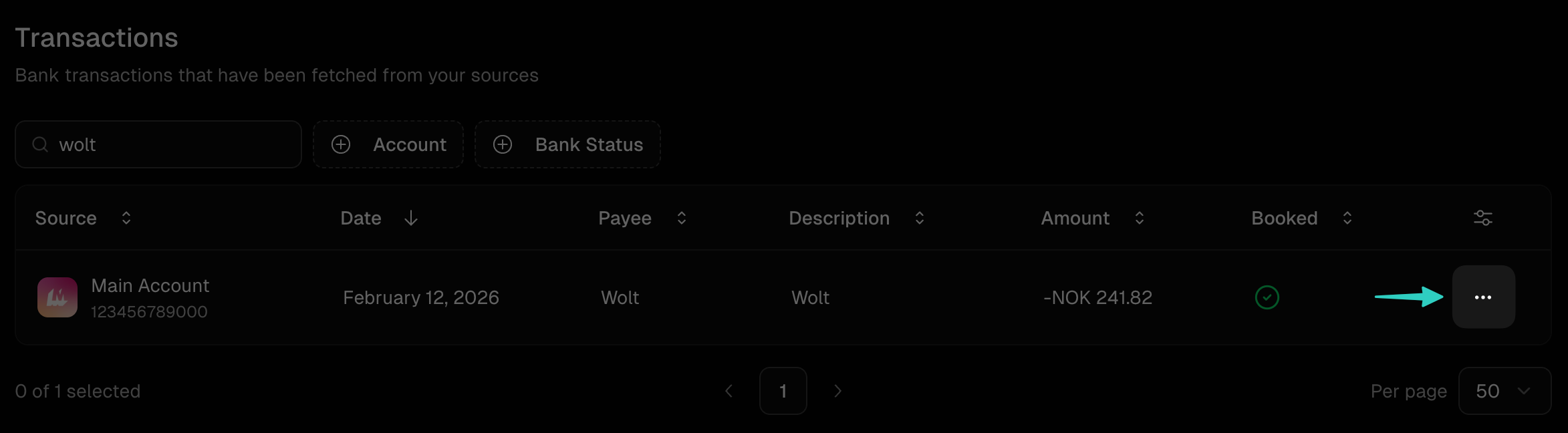
In the Synci dashboard, you can click the three dots on a transaction line to view all non-empty fields, as well as its transfer logs, rule logs, and account details.
Mapped fields
Mapped fields are user-friendly fields Synci generates based on your account's Field mapping settings. They make it easy to get the most commonly used values, without building your own logic around which raw transaction fields to use. They are also the fields Synci uses when transferring transactions to destinations like YNAB, Lunch Money, and Google Sheets.
For instance, many banks provide the transaction description in the "Remittance Information Unstructured" field, but other banks put it elsewhere. Mapped fields solve this headache for you.
Synci provides the following mapped fields:
Date
Payee
Description
By default, each is mapped automatically to the best available field for your bank. You can override the source field per account in its settings, for example to always use the value date instead of the booking date.
Enriched fields
If enrichment is enabled for an account, Synci adds cleaned-up data on top of the raw transaction: a normalized counterparty name and logo, a category, location details, and whether the transaction looks like a recurring subscription. Enrichment applies to bank accounts only.
Investment activity
Transactions on investment and crypto accounts carry additional trade details:
Activity type: Buy, Sell, Dividend, Interest, Contribution, Withdrawal, Transfer, Fee, Tax, Stock Dividend, Stock Split, or Other.
Instrument: The security involved: symbol, name, exchange, and asset class (stock, ETF, option, cryptocurrency, fixed income, mutual fund).
Trade figures: Units, price per unit, fees, and the FX rate where applicable.
Options: For option trades: ticker, call/put, strike price, expiration, and the underlying symbol.
Duplicate detection
Synci automatically detects and skips duplicates during syncing, using several layers of matching, from exact provider transaction IDs down to careful comparison of dates, amounts, and references. This keeps your data clean even when a bank re-delivers the same transactions or a pending transaction is replaced by its booked version.
For special cases, you can customize which fields are used for duplicate filtering in the account's advanced settings.
Rules
Rules let you automatically transform or act on transactions using conditions and actions. There are two places rules can run:
Account rules: Attached to one or more accounts and applied as transactions are fetched. The changes persist in Synci.
Transfer link rules: Applied only while transferring to a destination; the transaction stored in Synci is untouched.
Every rule that fires leaves a rule log, so you can always see exactly what was changed and why.
Logs
Transfer logs
Every time a transaction is transferred to a destination, Transfer logs are created recording the outcome. Failed transfers can be retried, and completed transfers can be undone from the transfer log.
Rule logs
Every time a rule is triggered for a transaction, Rule logs are created detailing the exact action that was performed.
Was this helpful?
Still need help? Ask the team