MCP & AI assistants
Connect an AI assistant like Claude, ChatGPT, or Perplexity directly to your Synci account and ask about your money in plain language.
Written By Matias
Last updated 5 days ago
You can connect your Synci account to AI assistants through the Model Context Protocol (MCP), the open standard that AI clients use to discover and call tools. Synci runs a secure, read-only MCP server, so an assistant can read your financial data when you ask, but it can never move money, change a setting, or delete anything.
What it is
This isn't a transfer link or a destination. Your data does not get pushed anywhere. It's an integration that hands your AI tool a read-only window into your accounts, opened only when you ask and only for what you've allowed.
Read-only by design. There are no write tools. The server cannot modify, move, or delete anything.
You choose the accounts. During setup you pick exactly which financial accounts the assistant may read (or grant all, including ones you add later).
Sensitive details are hidden. Full account numbers, IBANs, card numbers, phone numbers, and account-holder names are never sent to the assistant.
Sign in once, no keys to copy. Connecting uses a standard Synci sign-in. There are no API keys or tokens to generate and paste.
Requirements
An active paid Synci plan. The MCP endpoint is available on all paid plans. Free accounts will see an upgrade prompt.
An MCP-compatible AI client, such as Claude, ChatGPT, or Perplexity. Any assistant that supports MCP works the same way.
Where to find it
Open the AI Access page from the main navigation in your Synci Dashboard. It has two sections:
Set up an assistant: the server URL and per-client instructions.
Connected assistants: a list of what's connected, with a Disconnect button for each.
How connecting works
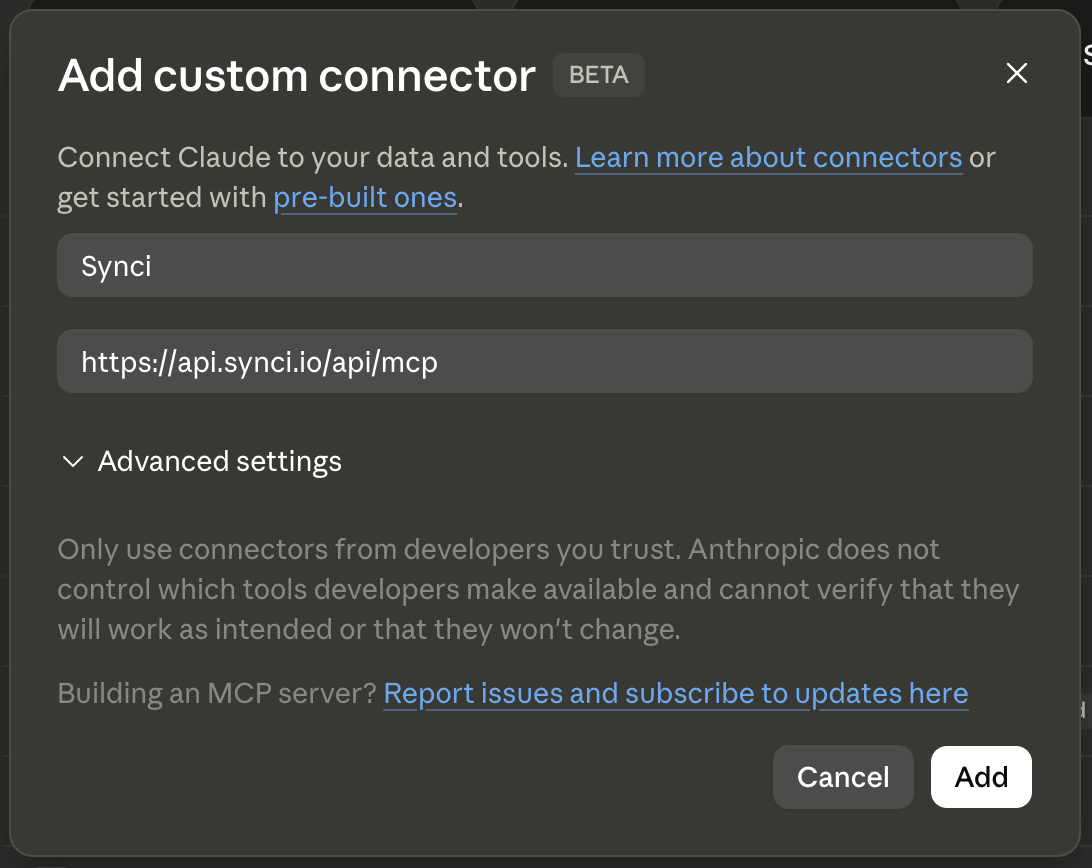
The flow is generally the same in every assistant/client:
Copy the Synci MCP server URL:
https://api.synci.io/mcpIn your AI client, add it as a custom connector (also called a remote MCP server).
The client opens Synci sign-in.
On the consent screen, you'll see the assistant, the permission it's requesting, and an account picker. Choose which accounts it may read.
Approve. The assistant now appears under Connected assistants.
There are no secrets or config files to set up for the standard flow.
Synci works with any assistant that supports MCP. The exact menu path differs between clients, and these menus change often, so we keep up-to-date, step-by-step instructions for popular assistants (including Claude, ChatGPT, and Perplexity) in your dashboard under AI Access.
Config-file fallback (mcp-remote)
If your client only supports config-file setup rather than remote connectors, you can bridge to the server with mcp-remote. This requires Node.js installed on your machine. Add the block below and restart the client:
{ "mcpServers": { "synci": { "command": "npx", "args": ["-y", "mcp-remote", "https://api.synci.io/api/mcp"] } } } MCP directories
The Synci MCP is available in the following directories:
What the assistant can do
Your client discovers Synci's tools automatically, so new tools can appear over time without you changing anything. Today there are five, all read-only:
Data covered: your bank accounts and your investment, brokerage, and crypto-exchange accounts, including their balances, transactions (including trades and other investment activity), and current holdings.
Things you can ask:
"List my Synci accounts."
"What's my balance across all accounts?"
"What did I spend on groceries last month?"
"How much do I owe on my credit card, and how much credit is left?"
"What are my crypto holdings worth now, and what's my profit and loss?"
"List my largest transactions in June."
"Which of my bank connections are failing?"
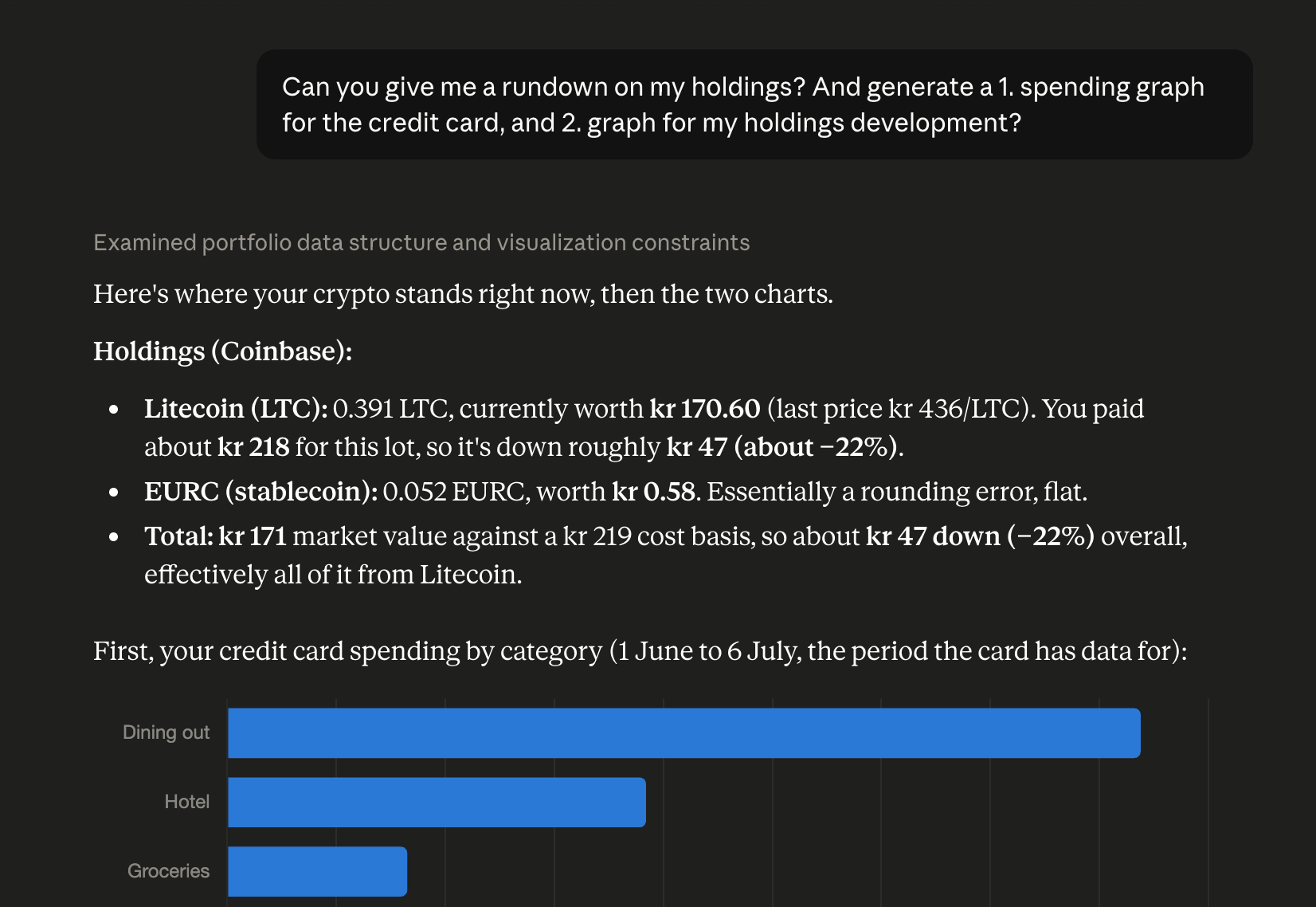
Charts and rundowns. Because the assistant reads your real numbers, it can also summarize and visualize them. Most assistants can turn a request into a table, a chart, or a written breakdown:
"Chart my spending by category for the last three months."
"Give me a monthly rundown of income vs expenses this year."
"Show a pie chart of where my money went in June."
"Compare this month's spending to last month and highlight what changed."
"Break down my portfolio by asset and show the allocation as a bar chart."
What you get back (a live chart, a downloadable file, a plain table) depends on the assistant you're using, not on Synci. Synci supplies the data; the assistant decides how to present it.
Security and privacy
Strictly read-only. The server exposes read tools only. It cannot reach the rest of the Synci API or any other part of your account.
Scoped to the accounts you pick. Everything you don't select stays invisible to the assistant.
Sensitive identifiers are stripped before any data leaves Synci: IBANs and account numbers, card numbers, phone numbers, and account-holder names.
Consent is explicit and revocable. You approve on a Synci-hosted screen and can disconnect instantly.
Verified branding for known clients. Recognized assistants show verified branding on the consent screen. Anything unrecognized is clearly marked as an unverified assistant so you can decide before approving.
Synci is independent and not affiliated with Anthropic, OpenAI, Perplexity, or any other assistant. Their names are used only to describe compatibility.
Good to know
A few honest caveats so answers stay accurate rather than confidently wrong:
Balances can lag transactions. Balance syncing is opt-in per account and quota-limited, so a balance may be older than the transactions around it. Every balance carries a "last synced" date, and the assistant is told to flag a stale balance rather than present it as current.
Enrichment gives cleaner answers. With transaction enrichment enabled (Pro), the assistant sees tidy merchant names and categories. Without it, it works from raw bank text, which can be terse. Enrichment is a good idea if you want better AI answers.
Managing and disconnecting
The Connected assistants list on the AI Access page shows each assistant's name, developer, the permission it holds, which accounts it can read, and when it connected. Disconnect cuts off access immediately; reconnecting requires approving again. For more on consent, per-account control, and notifications, see Managing third-party apps and AI assistants.
Was this helpful?
Still need help? Ask the team